**Important Note**:
We recommend completing your first time enrollment first with your desktop before starting to setup on your mobile device.
- Login to My.Movaci.com and under Your Active Products/Services, SafeNet NG VPN Product, click View Details to open your SafeNet NG VPN product, then click Start Device Enrollment.
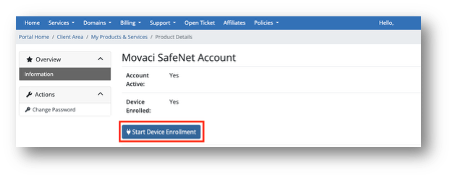
The system will also send you an email for your new Enrollment Token to your email. - Click Enrollment Token to obtain your token.
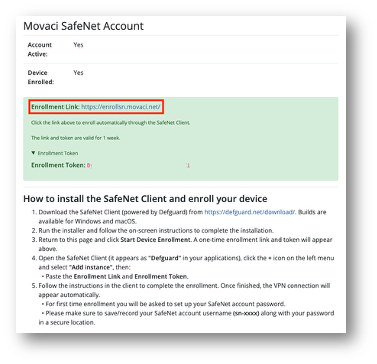
- Click Enrollment Link or open portal link: https://enrollsn.movaci.net
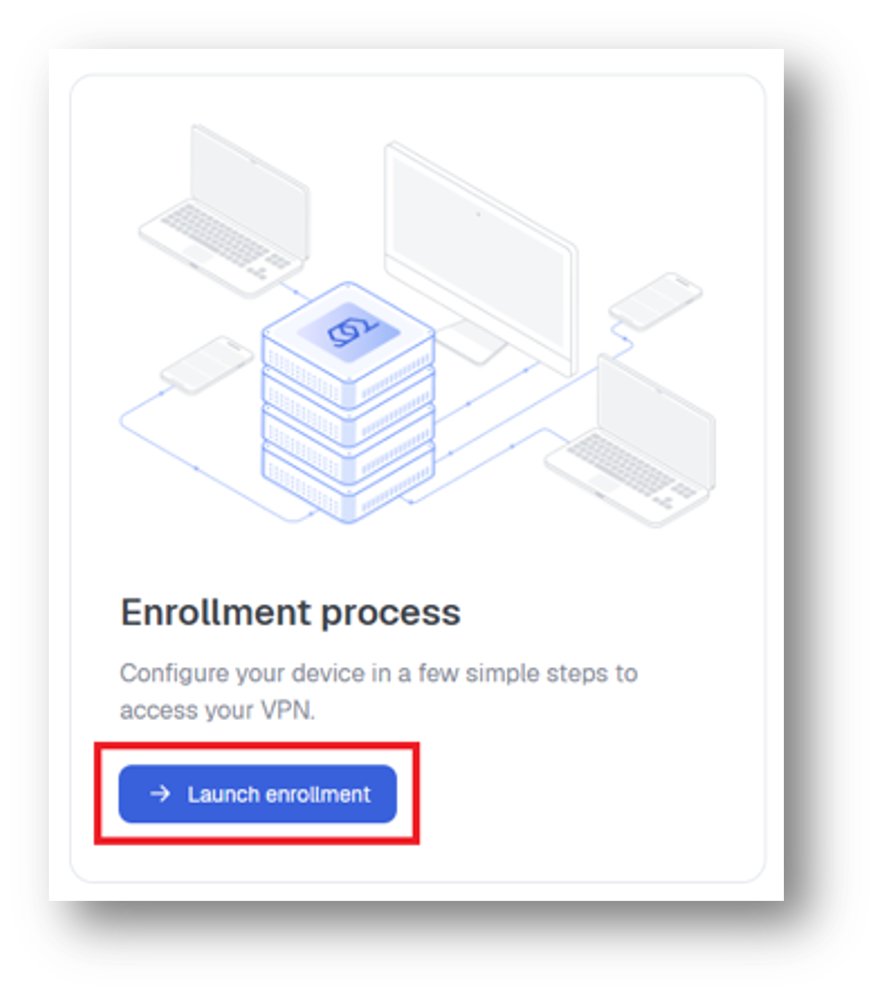
- Click Lunch enrollment.
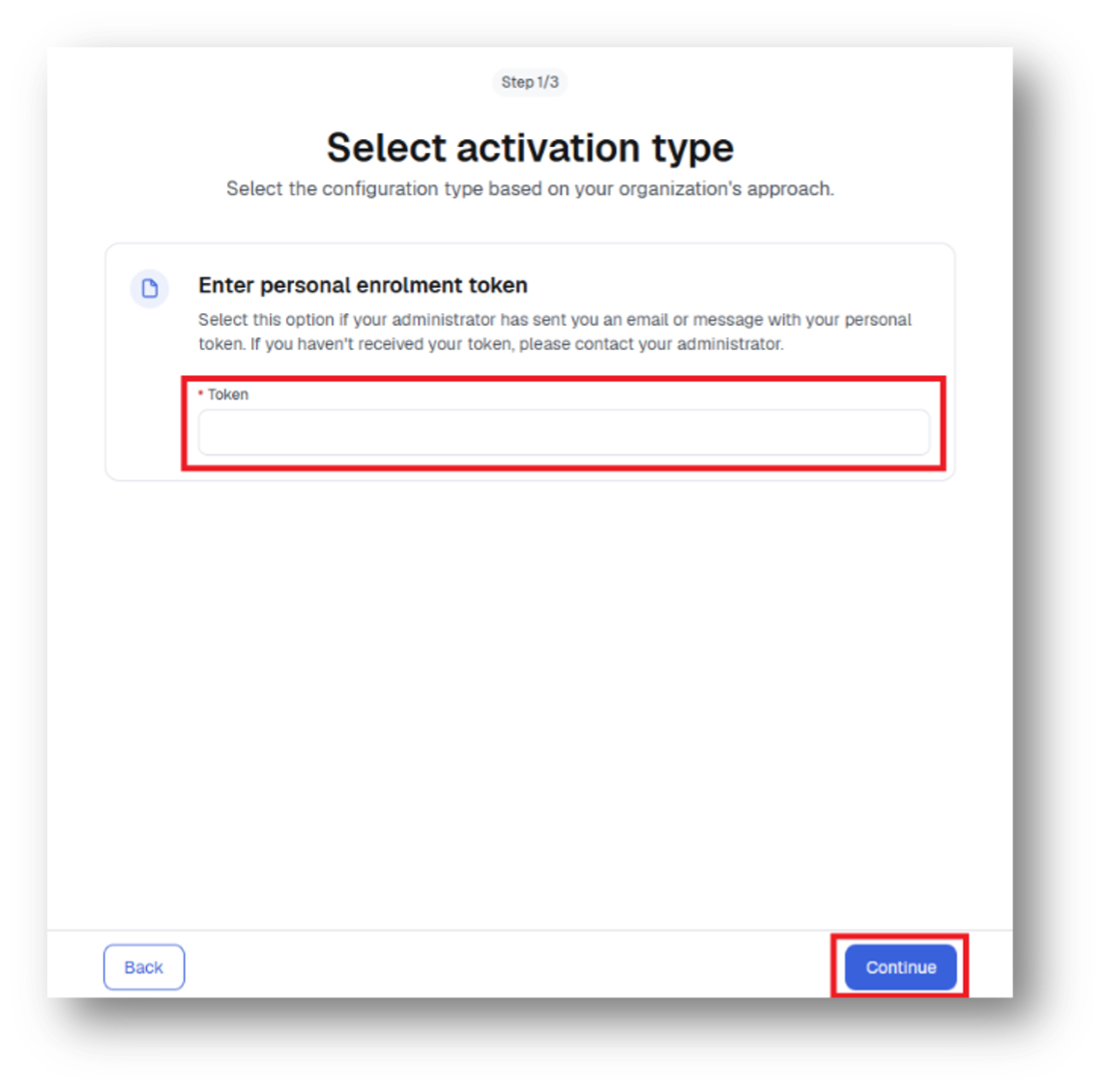
- Enter the Enrollment Token. Then click Continue.
- Complete install Defguard application for your device’s operating system (iOS or Android)
Note: Please make sure the Defguard application is installed and ready before continuing.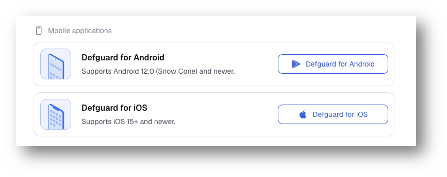
iOS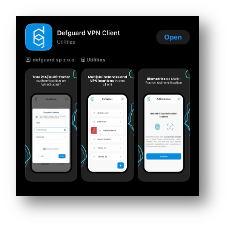
Android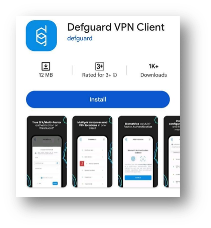
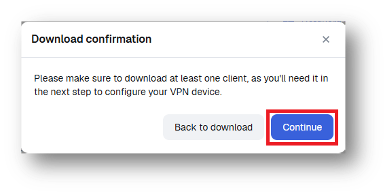
- On the download confirmation page, click Continue.
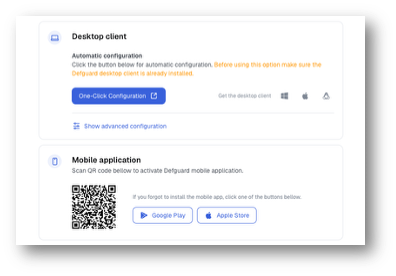
- Under Mobile application section, use your Defguard application on your mobile phone to scan the QR code.
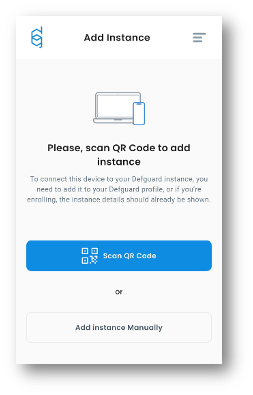
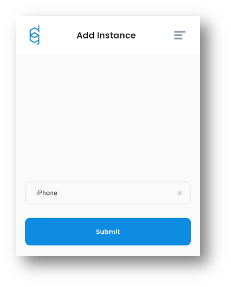
- Once completed the QR code scan, enter your preferred device name and then press Submit.
- You will be asked to setup Biometric Authentication for using as Multi-Factor Authentication (MFA) for your VPN connection.
You may skip this step if you do not want to confirm each VPN connection. However, we recommend enabling MFA for better security.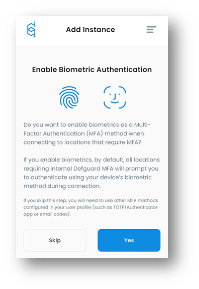
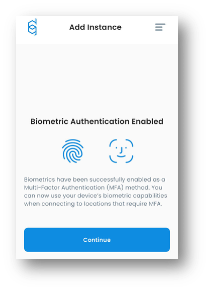
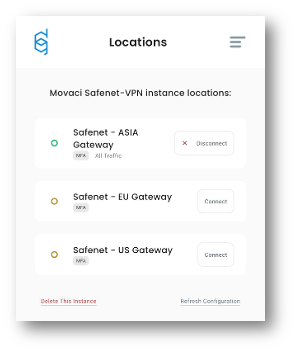
- The SafeNet NG VPN profiles will be automatically added to the Defguard application on your mobile device.
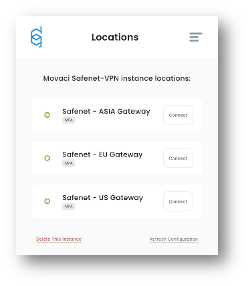
- Try to connect one of them, the application will ask for authentication method. We recommend to using the Biometric as a primary method if you setup earlier.
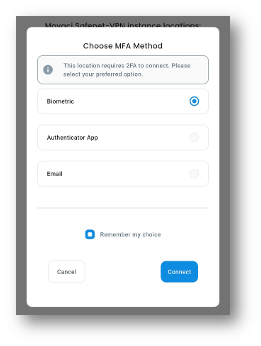
- Once choosing the MFA method the application will ask you for a permission to allow Defguard to device VPN configurations, please allow it.
iOS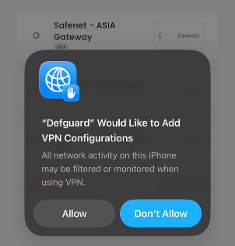
Android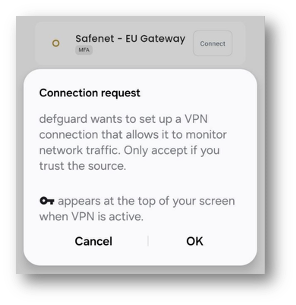
- You have completed all setup and connected to SefeNet NG VPN on your mobile device.