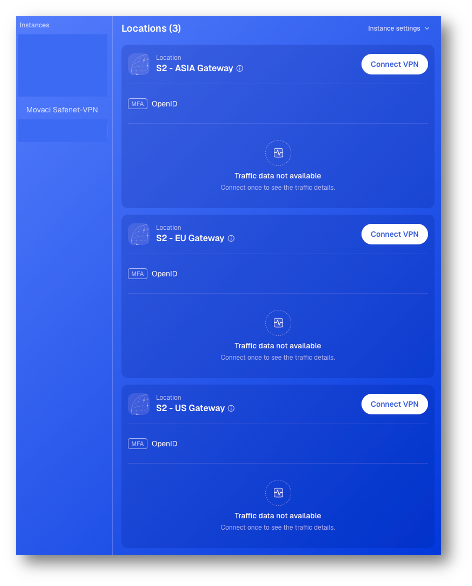
Apart from adding new device from SafeNet NG VPN Portal, you can also enroll or adding a new device from device enrollment token from your product in My.Movaci.com portal or Device Enrollment Email.
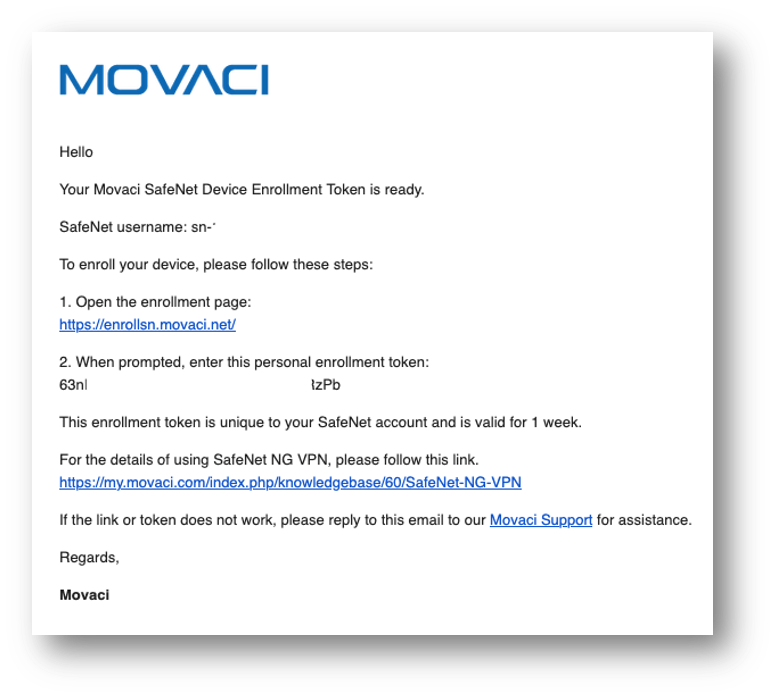
Option 1: Device Enrollment Email, you will receive Device Enrollment Token from your email.
Option 2: My.Movaci.com, under Your Active Products/Services, SafeNet NG VPN product, click View Details, click Start Device Enrollment and click Enrollment Token to reveal your token.
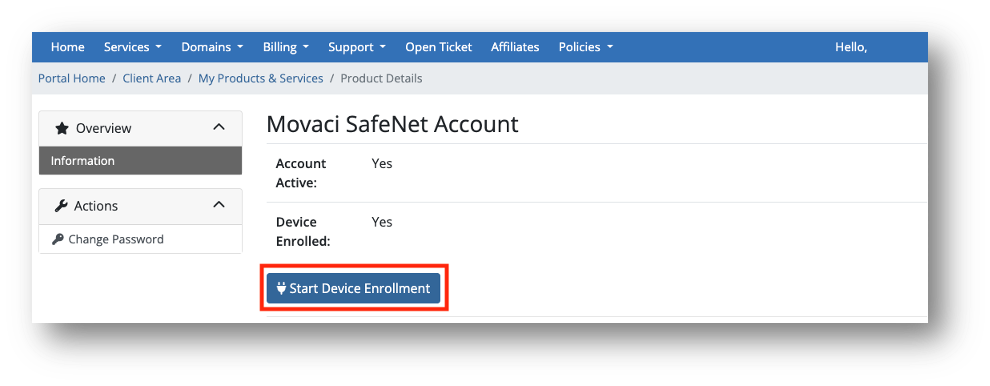
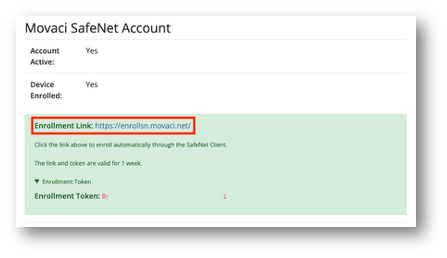
- Obtain the Enrollment Token from either the Device Enrollment Email or the SafeNet NG VPN service page in our Customer Service Portal (My.Movaci.com), then copy the token for use during the enrollment process.
- Open the enrollment portal link: https://enrollsn.movaci.net
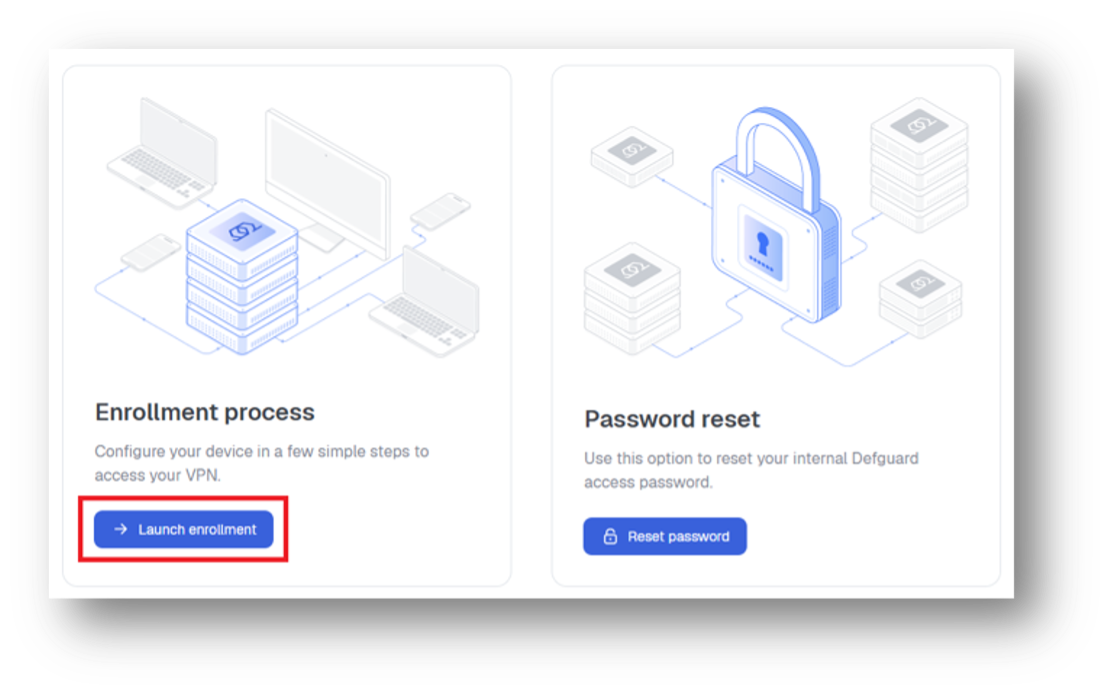
- Click Lunch enrollment.
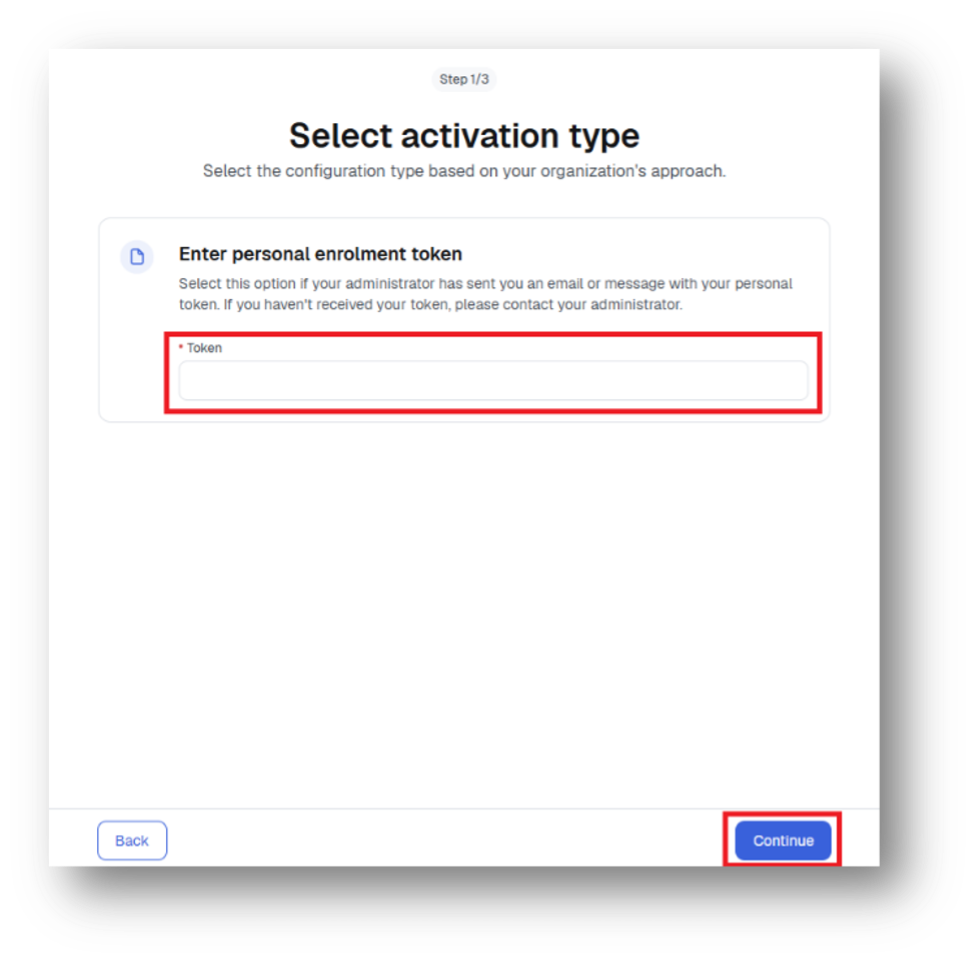
- Enter the Enrollment Token. Then click Continue.
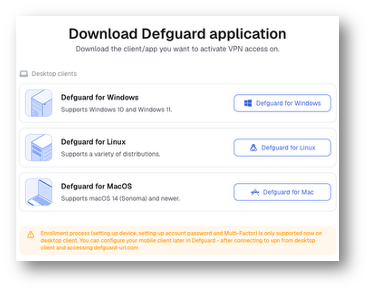
- Please download the appropriate desktop client version for your device’s operating system.
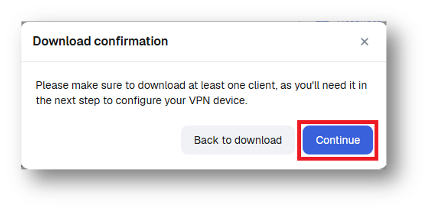
Note: Please make sure the Defguard VPN desktop client is installed and ready before continuing. - On the download confirmation page, click Continue.
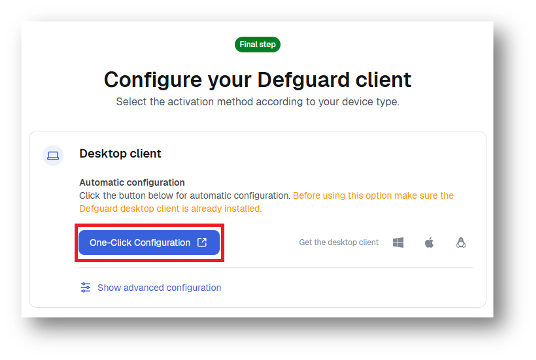
- On the configure your Defguard client page, click One-Click Configuration to open your desktop client.
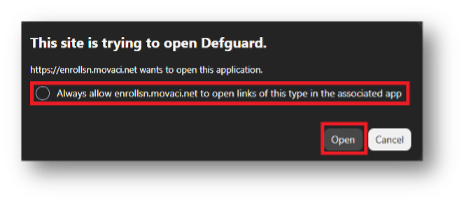
- A browser pop-up window will appear.
- Select, Always allow enrollsn.movaci.net to open links of this type in the associated app.
- Click Open.
- In the Defguard desktop client, enter your preferred device name and click Add Instance to start the client setup process.
- The SafeNet NG VPN profiles will be automatically added to the Defguard desktop client application.