Note: Before adding a new device, install the Defguard client for your device’s operating system from your device’s app store.
iOS
Android
- Sign in to https://safenet.movaci.net using your SafeNet NG VPN account credentials.
- Navigate to Devices menu.
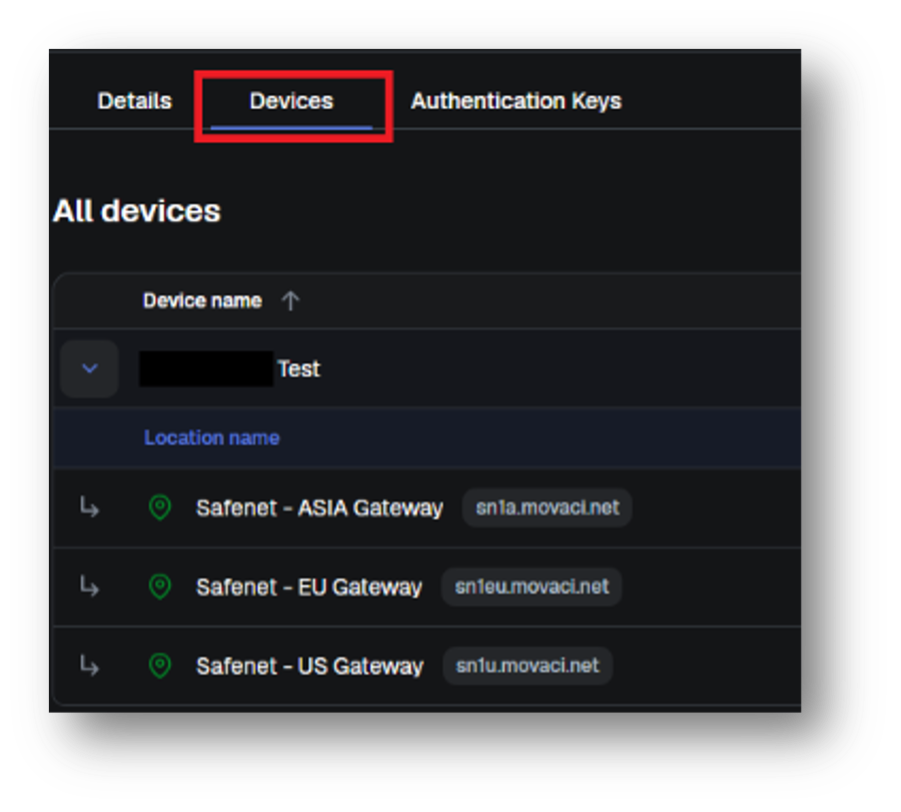
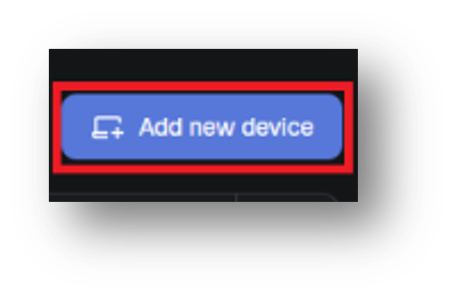
- Click Add New Device.
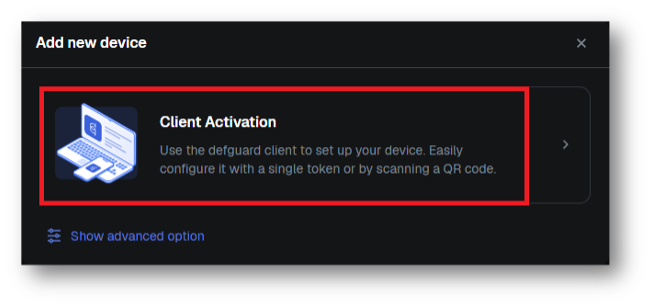
- Select Client Activation.
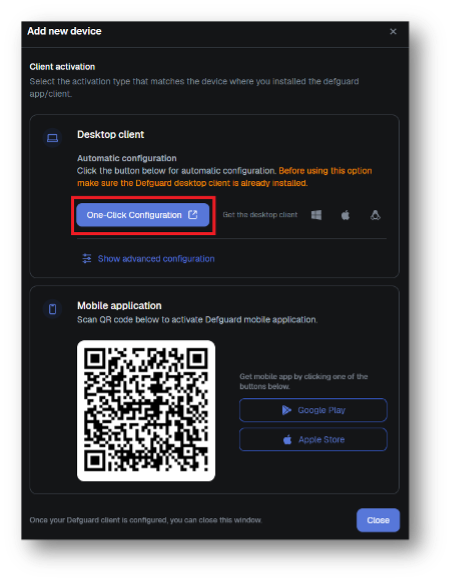
- For mobile device, scan the QR code with your Defguard application on your mobile device.
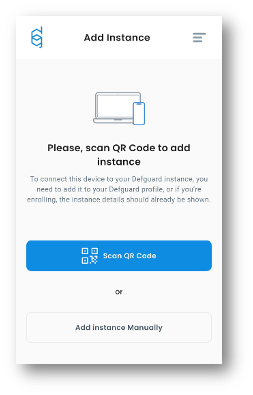
- Open Defguard application and click the + icon and select "Scan QR Code".
- Once completed the QR code scan, enter your preferred device name and then press Submit.
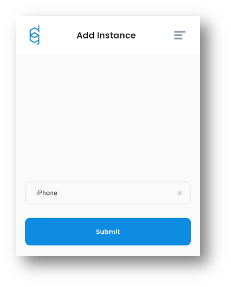
- You will be asked to set up Biometric Authentication as your Multi-Factor Authentication (MFA) method for VPN connections.
You may skip this step if you do not want to confirm each VPN connection. However, we recommend enabling MFA for better security.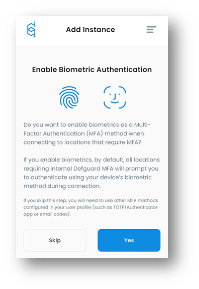
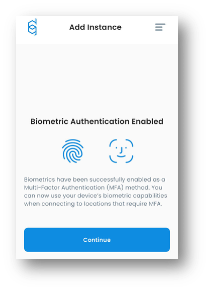
- Open Defguard application and click the + icon and select "Scan QR Code".
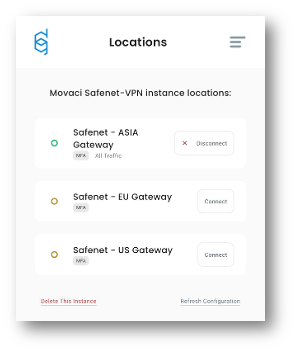
- The VPN profiles will be automatically added to your Defguard application on your mobile device.
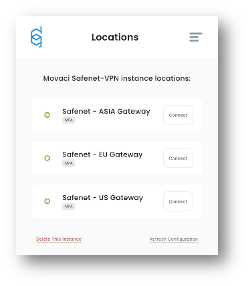
- Try to connect one of them, the application will ask for authentication method. We recommend to using the Biometric as a primary method if you setup earlier.
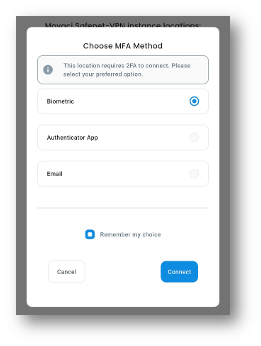
- Once choosing the MFA method the application will ask you for a permission to allow Defguard to device VPN configurations, please allow it.
iOS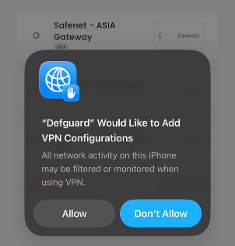
Android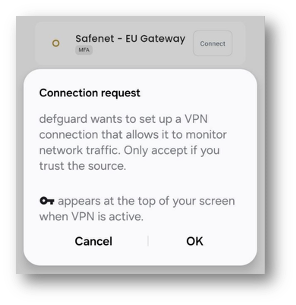
- You have completed all setup and connected to SefeNet NG VPN on your mobile device.