
If the iPhone or Samsung hotspot appears to be working correctly, perform the following checks on the Windows 11 device.
1. Confirm Wi-Fi is Enabled
- Open Settings > Network & Internet > Wi‑Fi
- Ensure Wi‑Fi is turned On
- Select Show Available Networks
- Choose the mobile hotspot and connect
Microsoft recommends first verifying Wi‑Fi is enabled and that the hotspot appears in the list of available networks.
2. Check Airplane Mode
- Open Settings > Network & Internet > Airplane Mode
- Ensure Airplane Mode is Off
Airplane Mode disables all wireless communications and can prevent hotspot detection.
3.Update the Phone Software
Outdated operating systems can cause compatibility and connectivity issues.
Apple
- Settings > General > Software Update
Samsung
- Settings > Software Update
Install all available updates and retry.
4. Forget and Reconnect to the Hotspot
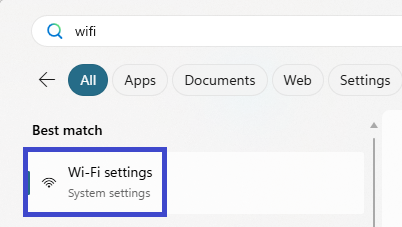
- Open Start Menu > Search for Wi-Fi > Select Wi‑Fi settings
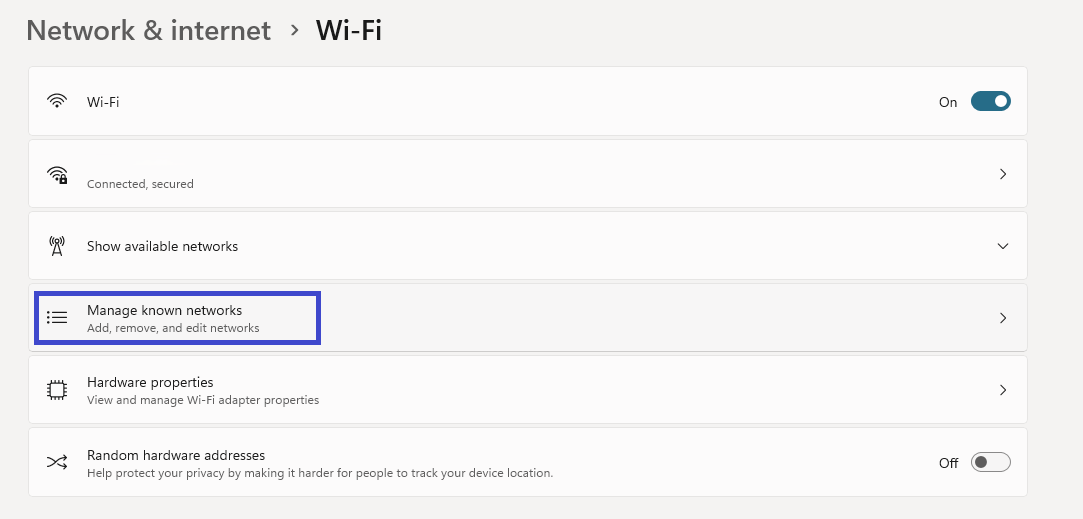
- Select Manage Known Networks
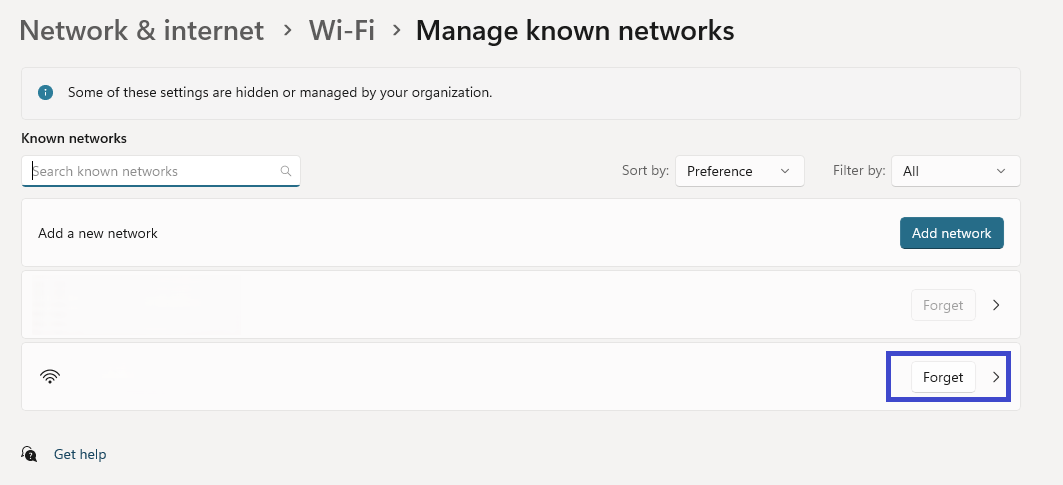
- Find the hotspot
- Click Forget
- Reconnect and enter the hotspot password again
Microsoft recommends removing and re-adding saved wireless profiles to resolve authentication and connectivity issues.
5. Run the Windows Network Troubleshooter
- Open Settings
- Go to System > Troubleshoot > Other Troubleshooters
- Run Network and Internet
6. Toggle Wi‑Fi Off and On
- Disable Wi‑Fi
- Wait 10 seconds
- Re-enable Wi‑Fi
- Reconnect to the hotspot
7. Check Whether Other Devices Can Connect
Attempt to connect another device to the same hotspot.
- If multiple devices fail → likely a phone, carrier, or hotspot issue.
- If only the Windows device fails → continue with Windows-specific troubleshooting.
Apple (iPhone)
8. Enable USB Tethering
- Open Microsoft Store
- Install Apple Devices - Free download and install on Windows | Microsoft Store
- Connect the iPhone to the Windows 11 computer using a USB cable.
- Open Settings > Personal Hotspot.
- Enable Allow Others to Join.
- If prompted on the iPhone, select Trust This Computer.
- Windows should detect a new network connection automatically.
Important: Apple states that Windows PCs may require you to install the latest version of Apple Devices from the Microsoft Store or iTunes for Windows to support USB hotspot connectivity.
Samsung Galaxy
9. Enable USB Tethering
- Connect the Samsung phone to the computer with a USB cable.
- Open Settings.
- Select Connections.
- Select Mobile Hotspot and Tethering.
- Enable USB Tethering.
- Wait for Windows to detect the connection.
Expected Result
If USB tethering works successfully:
- The mobile network connection is functioning.
- The problem is likely limited to Wi‑Fi hotspot broadcasting or Windows wireless connectivity rather than the carrier connection itself
A simple reboot can clear temporary network adapter or driver issues.
- Save work
- Restart Windows
- Reconnect to the hotspot
11. Reset iPhone Network Settings (Last Resort)
iPhone- Settings > General
- Transfer or Reset iPhone
- Reset
- Reset Network Settings
Note: This removes saved Wi-Fi networks and network-related settings.Reference:
https://support.apple.com/en-au/119837
12. Perform a Windows 11 Network Reset (Last Resort)
If all other troubleshooting has failed:
- Open Settings > Network & Internet
- Select Advanced Network Settings
- Select Network Reset
- Click Reset Now
- Restart the computer
This reinstalls network adapters and restores networking components to their default configuration
